Before advanced operations
- In my case I no longer had Android access, so there was no backup. The operation wiped everything.
- EDL is low-level. An unsuitable Firehose or a USB disconnect can brick the device — I note that as a risk of what I did, not because it happened to me.
- Phoenix Service Tool and UnlockTool are third-party tools, not affiliated with Xiaomi or PowerIX. Some operations consume credits or a paid licence.
- I stuck to the Redmi Pad SE (xun) model. I did not grab a random loader or Firehose.
- I did this on my own tablet. This is not a how-to for a device that is not yours.
- PowerIX @ Home does not repair Android tablets. It is a Windows PC health assistant.
Redmi Pad SE stuck with Family Link: the problem
On this Redmi Pad SE (xun), the tablet was managed by Google Family Link. It had become unusable: I could no longer establish the connection needed to fix the issue from the parent account.
Recovery was reachable. Wipe Data was missing. I contacted Xiaomi support: after some back and forth, they said they could not intervene and sent me back to the retailer.
Hardware observed in my case: Qualcomm platform, eMMC storage, locked bootloader. That is not a universal claim about every Redmi Pad SE — it is what this tablet exposed.
Why Wipe Data can be missing
In my case, the Recovery menu did not offer Wipe Data. Other Xiaomi users describe the same symptom on Family Link devices, but I have no official Xiaomi confirmation of the exact mechanism.
I am not generalising. On this Redmi Pad SE it was simply a fact: Recovery accessible, no local factory reset from that menu.
Google Family Link documentation includes a parent-app reset (“Reset device & delete data”). In my case that path was no longer usable: the tablet no longer provided the required connection.
Identify the tablet with Fastboot
I could reach Fastboot. I first used read-only, non-destructive commands:
The important results, in my case:
fastboot devices
fastboot getvar product
fastboot getvar unlocked
fastboot getvar secure
fastboot getvar all

product: xun
unlocked: no
secure: yes
variant: SM_ EMMC
userdata: f2fs
Why fastboot erase userdata does not work
I then tried a Fastboot factory reset. Here is the error actually returned:
The bootloader was locked (unlocked: no). Fastboot refused to erase userdata. That was not a bad cable: it is the lock.
I did not run other random erase commands (frp, persist, devinfo, abl, and so on). On a locked bootloader those are at best useless and at worst destructive.
fastboot erase userdata

******** Did you mean to fastboot format this f2fs partition?
Erasing 'userdata'
FAILED (remote: 'Erase is not allowed in Lock State')
fastboot: error: Command failed
First attempt: Recovery
Before Fastboot, I went through Recovery. On this tablet the menu did not offer Wipe Data. Essentially reboot or connection options (Mi Assistant) remained, with no local reset.
That changed nothing. Many Xiaomi how-tos start with “Recovery → Wipe Data”. In my case that entry simply did not exist.
Switching to Qualcomm EDL
At that point I understood Fastboot would not let me erase userdata: the bootloader is still there, and if it is locked it refuses. Qualcomm EDL (Emergency Download Mode, often seen in Windows as HS-USB QDLoader 9008) is a lower-level mode used by service tools to talk to the SoC through a Firehose programmer.
I did not open the tablet or hunt for a test point. In my case, Fastboot → EDL was done in software.
Phoenix: Fastboot → EDL
I used Phoenix Service Tool, a third-party utility not affiliated with Xiaomi. The “Fastboot to EDL” operation worked on this Redmi Pad SE. Real log excerpt:
After that operation the tablet screen went black. Windows detected a Qualcomm device. That is when I saw the problem become the driver.
If a vendor link is needed, I only use the official site. No PowerIX affiliation.
Operation           :Fastboot to EDL
Platform            :Xiaomi
Selected Model      :Auto Model

Searching for device...OK
Checking server price... OK
Connecting to device...OK
Retrieving Device Information...

Bootloader State    :no
Model               :Redmi Pad SE
Product             :xun

Generating signature...OK
Granting Authorization...OK
Rebooting to edl ...OK
Qualcomm driver on Windows
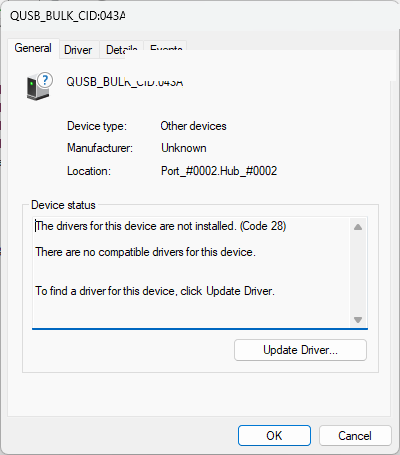
Right after the EDL switch, Windows did not yet show a clean 9008 port. The device appeared as QUSB_BULK, with Code 28: driver not installed.
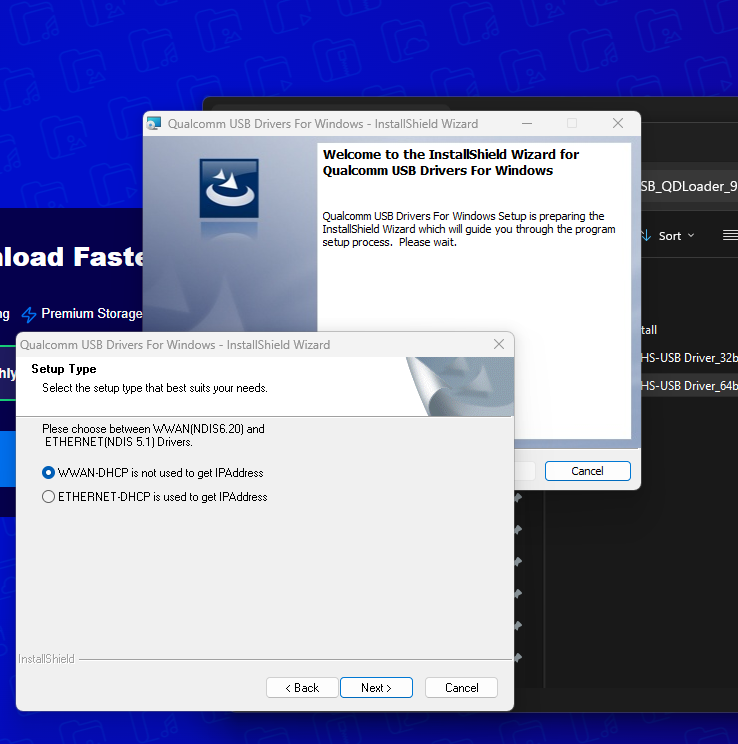
I then installed the “Qualcomm USB Drivers For Windows” package used in this field report. That is not a download recommendation and not a link. It is only the driver that, in my case, moved the device from QUSB_BULK to a QDLoader 9008 port.
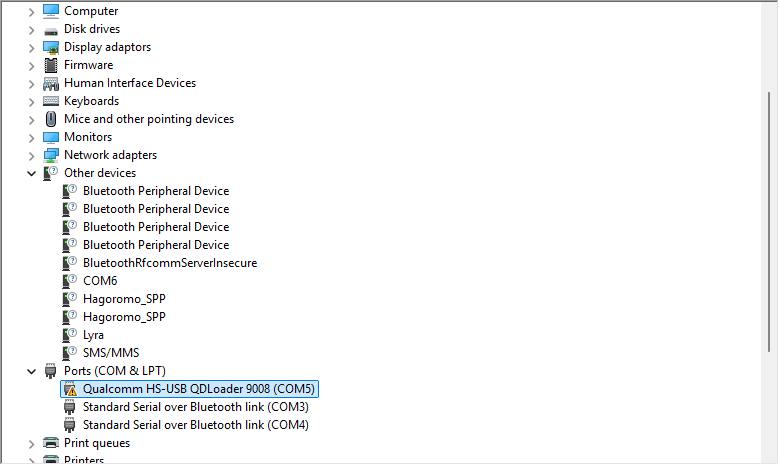
Once the driver was in place, Device Manager showed Qualcomm HS-USB QDLoader 9008. The COM number does not matter: on another PC it may be COM3, COM5, or something else.
I also hit Code 52 (Windows treating the driver as incorrectly signed). A properly signed driver remains the right target. Temporarily disabling signature enforcement is not the same as turning off Windows protections for good.
Why I did not end up using Phoenix for the reset
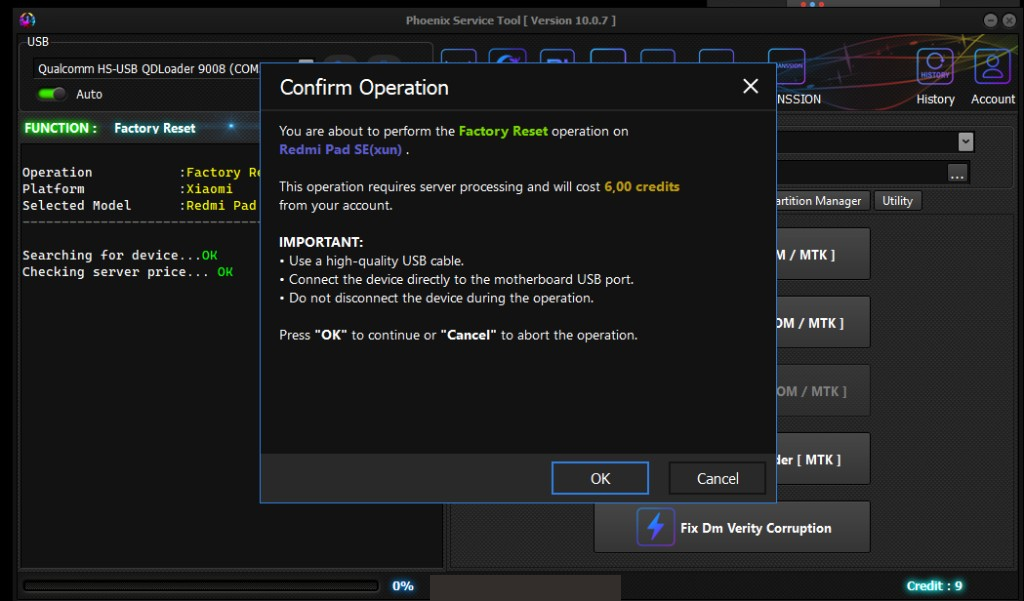
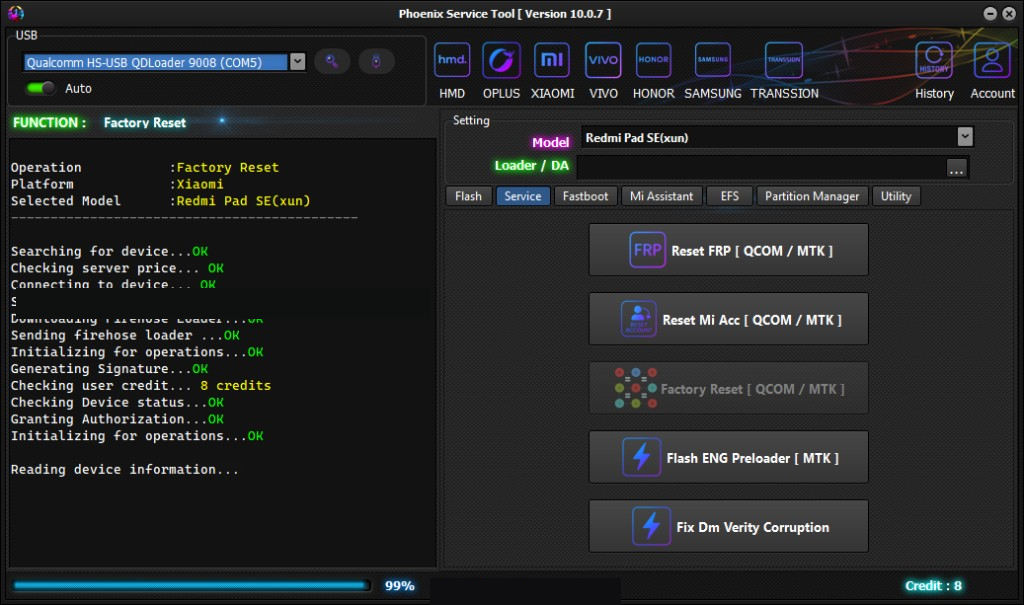
Phoenix offered Service → Redmi Pad SE (xun) → Factory Reset [QCOM / MTK]. The tool recognised the model and announced paid server processing (6.00 credits in my case).
I note that cost because I actually hit it. It is not an invitation to buy credits.
The Phoenix Factory Reset did not complete on this tablet. Phoenix could switch to EDL, but could not finish the reset.
Phoenix: Firehose and authorization succeed, then Factory Reset fails
The first error, after a poorly recovered EDL session, was:
After a clean new EDL session, Phoenix went much further: device search, Firehose, signature, authorization. Then the real failure:
At that point I understood EDL access was no longer the problem. Firehose started. Server authorization passed. Partition-table readout is what failed.
After reboot, nothing had changed. The reset had not been performed.
Connecting to device...
FAIL ( Device is in Sahara error state, please reboot the device )

--- then, after a new EDL session ---

Searching for device...OK
Checking server price... OK
Connecting to device... OK
Downloading Firehose Loader...OK
Sending firehose loader ...OK
Initializing for operations...OK
Generating Signature...OK
Checking Device status...OK
Granting Authorization...OK
Initializing for operations...OK
Reading device information...
FAIL ( Cannot read partition table )

Reset Factory...
The combination that worked: Phoenix → EDL, then UnlockTool
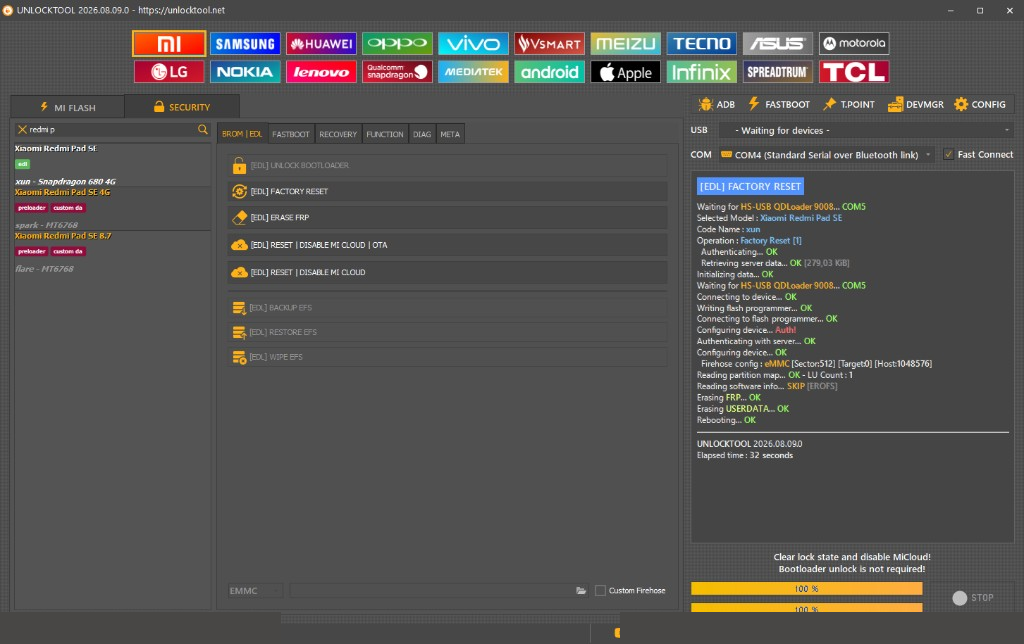
What finally worked for me was: Fastboot → Phoenix (Fastboot to EDL) → Qualcomm EDL 9008 → UnlockTool → EDL Factory Reset.
Phoenix was only used for Fastboot → EDL, which worked reliably. Phoenix Factory Reset stayed stuck after Firehose and authorization.
UnlockTool in EDL mode, [EDL] FACTORY RESET, model Xiaomi Redmi Pad SE / xun / Snapdragon 680 4G, then succeeded. The real log shows the exact contrast with Phoenix:
Where Phoenix stopped on “Cannot read partition table”, UnlockTool shows “Reading partition map... OK”. Same class of operation (Firehose / eMMC), with a partition-table read that this time completed.
The UnlockTool log also shows “Erasing FRP... OK”, then “Erasing USERDATA... OK” and “Rebooting... OK”, in 32 seconds. I can see it in the log: the Factory Reset did not only erase userdata; it also erased the FRP area. This was my device, not a method for bypassing a Google account.
UnlockTool is a third-party licensed tool. If a link is needed: official site only, no download mirrors.
Phoenix (failed):
Firehose OK → Authorization OK → Reading device information... FAIL ( Cannot read partition table )

UnlockTool (succeeded):
[EDL] FACTORY RESET
Waiting for HS-USB QDLoader 9008... COM5
Selected Model: Xiaomi Redmi Pad SE
Code Name: xun
Firehose config : eMMC [Sector:512]
Reading partition map... OK - LU Count : 1
Erasing FRP... OK
Erasing USERDATA... OK
Rebooting... OK
Elapsed time : 32 seconds
First reboot
The tablet rebooted correctly after the UnlockTool operation. The first boot can take longer than a normal power-on: that is expected after a userdata wipe.
In the end it worked on this device. I am not presenting it as guaranteed on every Redmi Pad SE, nor on another Xiaomi codename.
What not to do
I did not flash partitions at random.
I did not erase persist, devinfo, abl or other partitions because a forum said so.
I did not use an unverified Firehose or loader found at random.
Unplugging during an EDL write is risky. I note that as a limit, not as an incident I had.
I did not apply a procedure written for another Xiaomi model to xun.
Conclusion
On this Family Link–locked Redmi Pad SE (xun), with no Wipe Data in Recovery, Fastboot refused to erase userdata (Erase is not allowed in Lock State). Phoenix succeeded at Fastboot → EDL, but its Factory Reset failed while reading the partition table. UnlockTool, already in EDL 9008, read the eMMC table and then reset the tablet.
This is a field report, not a generic Xiaomi tutorial. The exact errors above are the ones I got. If your Recovery screen, codename or log differs, the path is not necessarily the same.

More than 20 years in IT operations, supervision and user support. Creator of PowerIX @ Home. This report documents a real case on his own hardware.
Frequently asked questions
Why does Redmi Pad SE Recovery hide Wipe Data?
In my case the option was missing on a Family Link tablet. Other Xiaomi users report the same symptom. I do not have an official confirmation of the mechanism, and I am not extending this as a rule to every model.
What does “Erase is not allowed in Lock State” mean?
That is the Fastboot message actually returned when I ran fastboot erase userdata on this locked-bootloader xun. Fastboot refuses to erase userdata until the bootloader is unlocked.
What should I do about Phoenix “Device is in Sahara error state”?
In my case that error appeared on a poorly recovered EDL session. A new EDL session let Phoenix go further (Firehose, authorization). The next failure was Cannot read partition table, not Sahara.
Why does Phoenix fail on Cannot read partition table while UnlockTool succeeds?
On this tablet Phoenix loaded Firehose and got authorization, then failed to read the table. UnlockTool, already in EDL 9008, showed Firehose config eMMC then Reading partition map... OK. That is the contrast I observed, not a general law about both tools.
Does PowerIX repair Xiaomi tablets or Family Link devices?
No. PowerIX @ Home is a Windows PC health assistant. This article is only a technical field report. It does not mean the PowerIX app diagnoses or repairs a Redmi Pad SE.